
Free Chrome extension
Screenshot it, mark it up, share the link
Capture any part of a web page, add arrows, text and blur, and get a link copied to your clipboard. No account needed.
Also works in Microsoft Edge, Brave and other Chromium browsers.
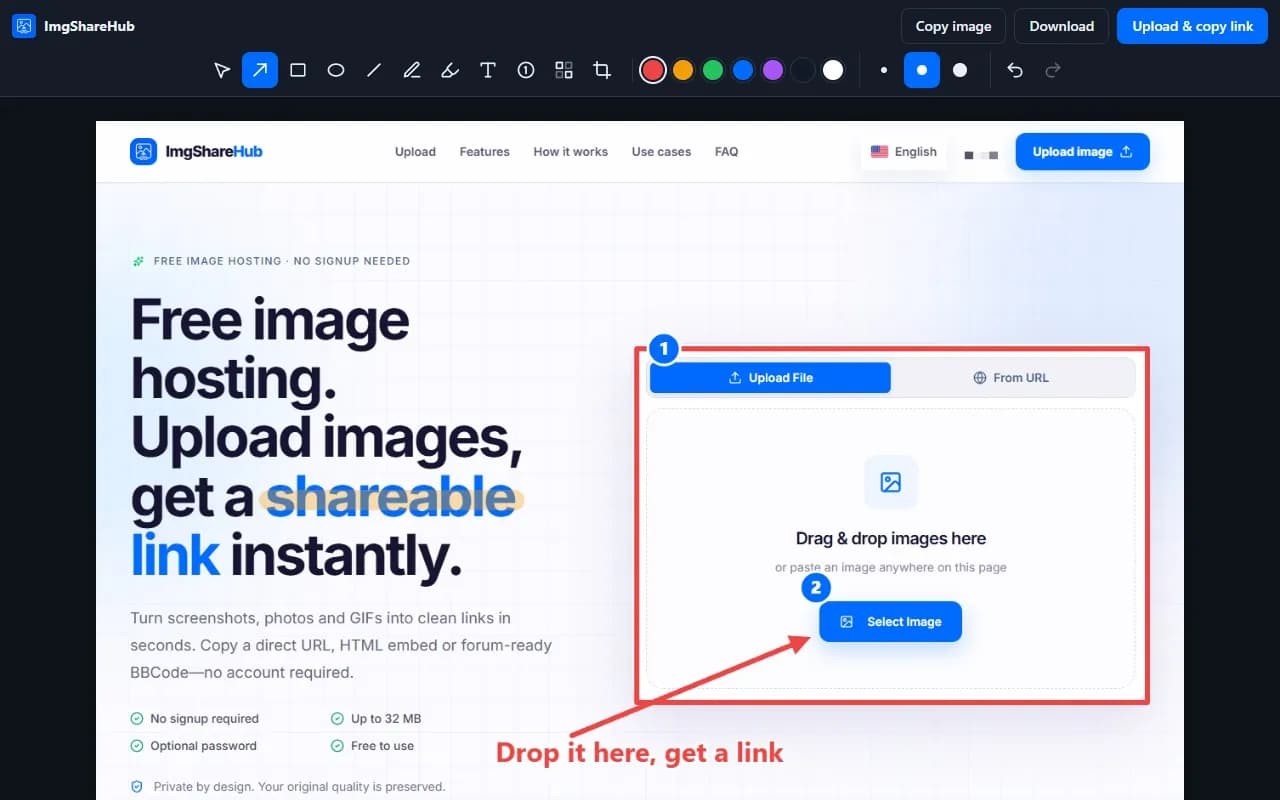
Everything you need to share a screenshot
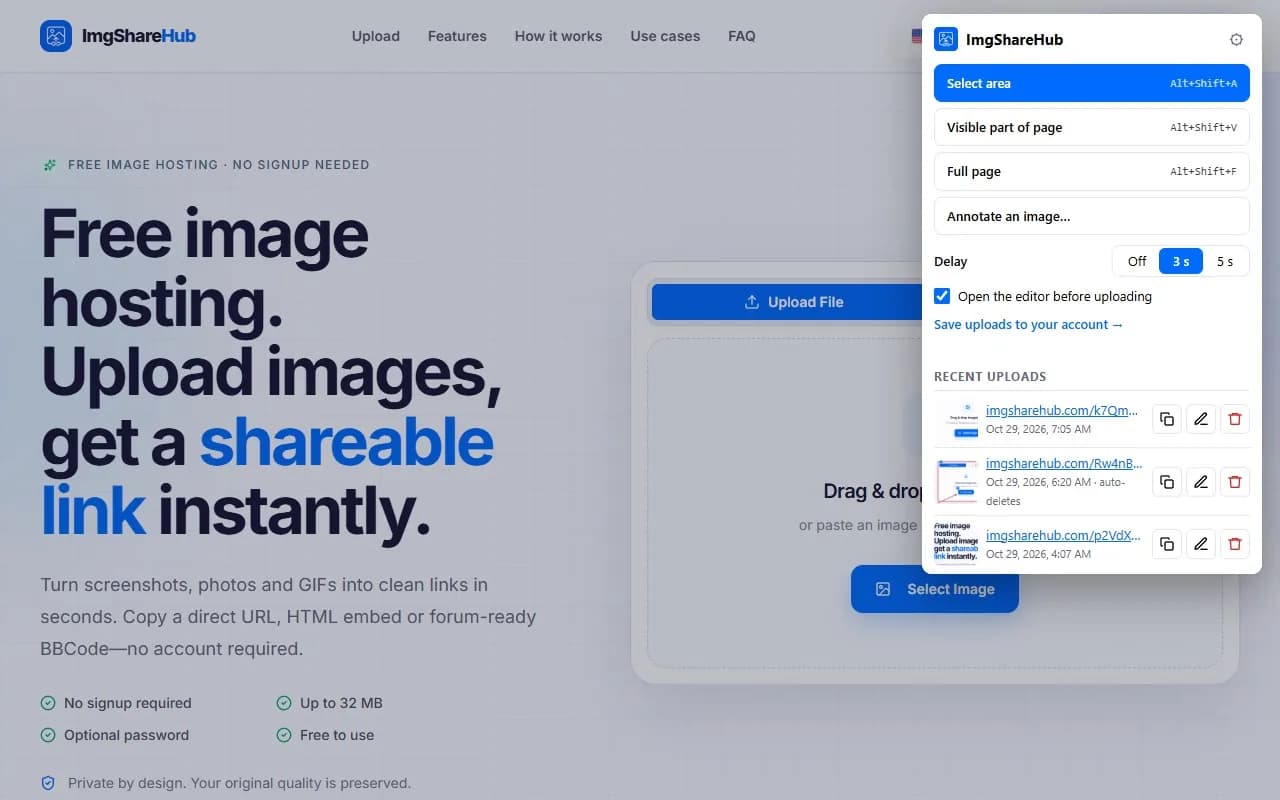
Select an area
Drag a box over anything on the page. The size is shown as you drag.
Full page
Scrolls the page and stitches it into one long image. Sticky headers only appear once.
Arrows, text and steps
Arrows, boxes, ellipses, a pen, a highlighter and numbered steps for instructions and bug reports.
Blur private details
Hide emails, names and tokens before anyone sees them, then crop to the part that matters.
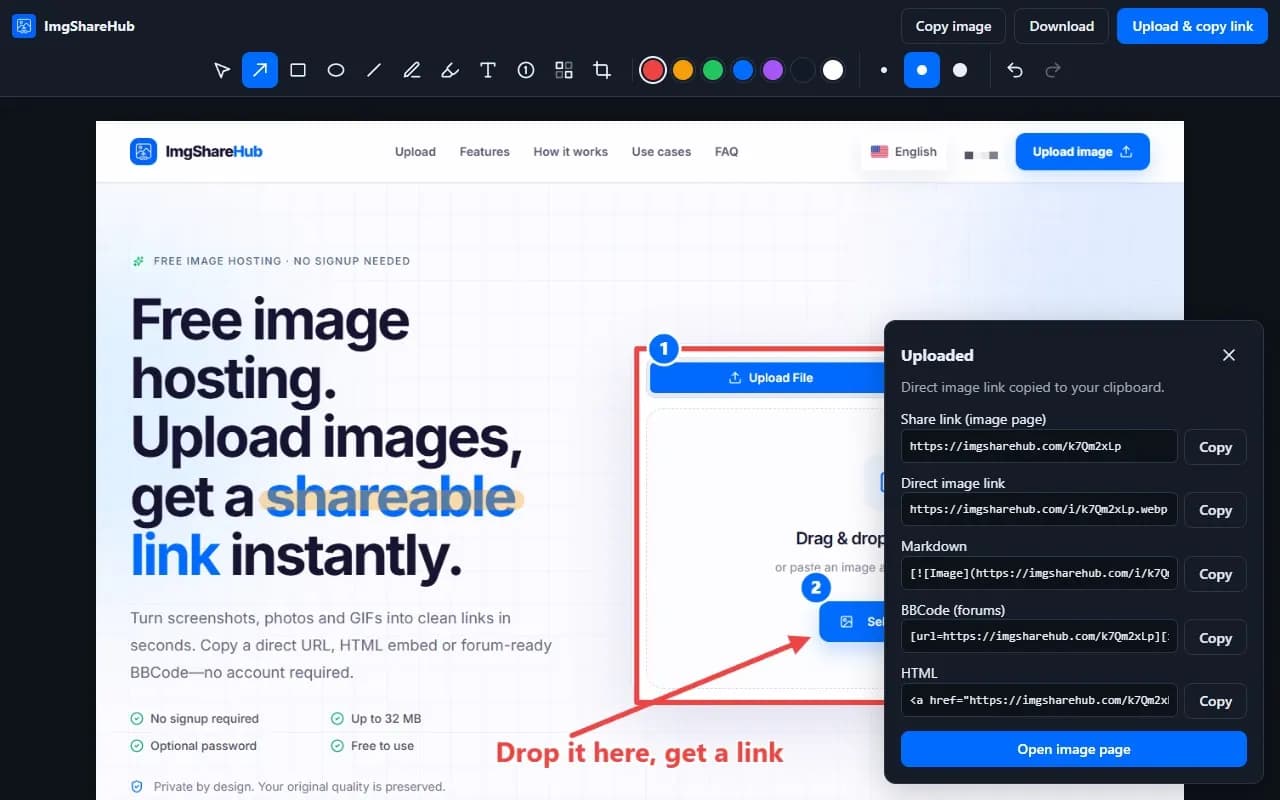
The link you need
Direct image link, share page, Markdown, BBCode or HTML, copied as soon as the upload finishes.
Capture menus
A 3 or 5 second delay lets you open a drop-down menu or hover effect before the shot.
Edit or delete later
Your recent uploads stay in the popup: copy a link again, reopen one with its annotations, or delete it.
Copy or download
Don't want to upload? Copy the finished image to the clipboard or save it as a PNG.
How it works
- 1
Add it to your browser
Install it from the Chrome Web Store and pin the ImgShareHub icon to your toolbar.
- 2
Capture and mark up
Click the icon or press a shortcut, choose what to capture, then draw on it in the editor.
- 3
Paste the link
Click Upload & copy link and paste it into a chat, an email, a forum post or a ticket.
A closer look
Keyboard shortcuts
Capture without opening the popup. You can change them on your browser's extension shortcuts page.
- Select an area
- AltShiftA
- Visible part of the page
- AltShiftV
- Full page
- AltShiftF
Keep uploads in your account
Uploads are anonymous unless you connect a free ImgShareHub account. Create an API key in your dashboard settings and paste it into the extension's settings: new uploads, and the ones you already made from that browser, appear in your dashboard, where you can rename them, add a password or delete them.
Private by design
- Nothing is captured until you click the icon, use a shortcut or the right-click menu.
- Screenshots only leave your computer when you choose to upload them.
- If you connect your account, the API key stays on your device.
- No tracking in the extension. See our privacy policy.
Questions about the extension
Is the extension free?
Yes. The extension and uploading are free, with or without an account.
Which browsers does it work in?
Chrome, and other browsers built on Chromium that can install from the Chrome Web Store, such as Microsoft Edge and Brave. Edge may ask you to allow extensions from other stores first. There's no Firefox or Safari version yet.
Do I need an account?
No. Without an account, uploads are anonymous and you can still copy, edit and delete them from the extension. Connect a free account if you want every upload in your dashboard.
Can I delete an image I uploaded?
Yes. Open the extension, find the image under Recent uploads and click the delete icon. Its links stop working everywhere. Images in your account can also be deleted from your dashboard.
Why does Chrome say "Proceed with caution" when I install it?
Chrome shows that message to people who use Enhanced Safe Browsing when an extension comes from a developer who is new to the Chrome Web Store. It goes away once the developer has a few months of history. The extension only looks at a page when you start a capture.
Is there a size limit?
Large screenshots are compressed automatically to fit the upload limit, and long full-page captures keep their full length up to 16,000 pixels.
Which languages is it in?
English, Spanish, Portuguese, French, German, Russian, Japanese, Indonesian, Turkish and Italian. It follows your browser's language.